WhatsApp setup guide
OpenClaw WhatsApp setup: connect your self-hosted AI agent with QR linking
A current guide to connecting OpenClaw to WhatsApp through ClawKickstart, including allowed numbers, QR linking, Linked Devices, diagnostics, and what to expect from the WhatsApp Web channel.
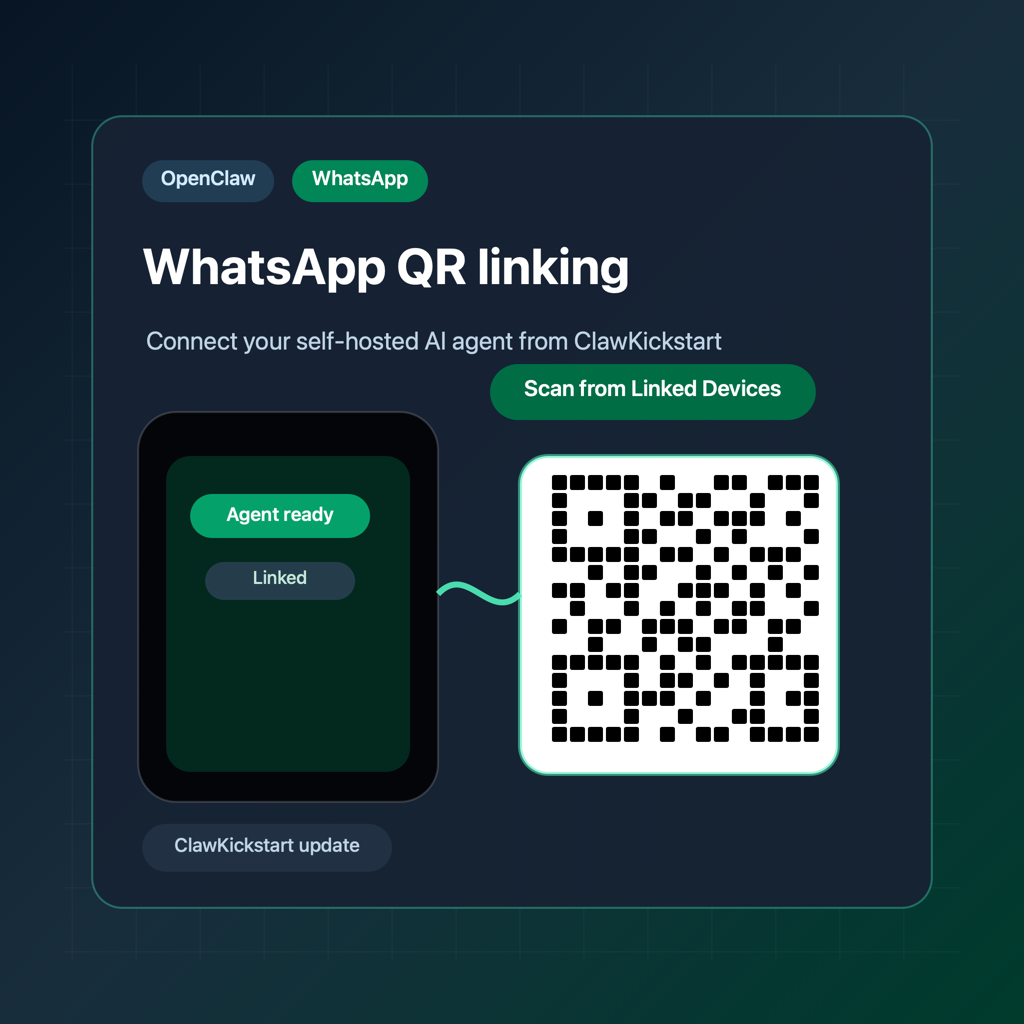
OpenClaw can now be set up from ClawKickstart with WhatsApp as the messaging channel for OpenClaw instances. That means you can run the agent on your own VPS, configure the model provider from the dashboard, allow specific WhatsApp numbers, and then link the WhatsApp session by scanning a QR code from WhatsApp Linked Devices.
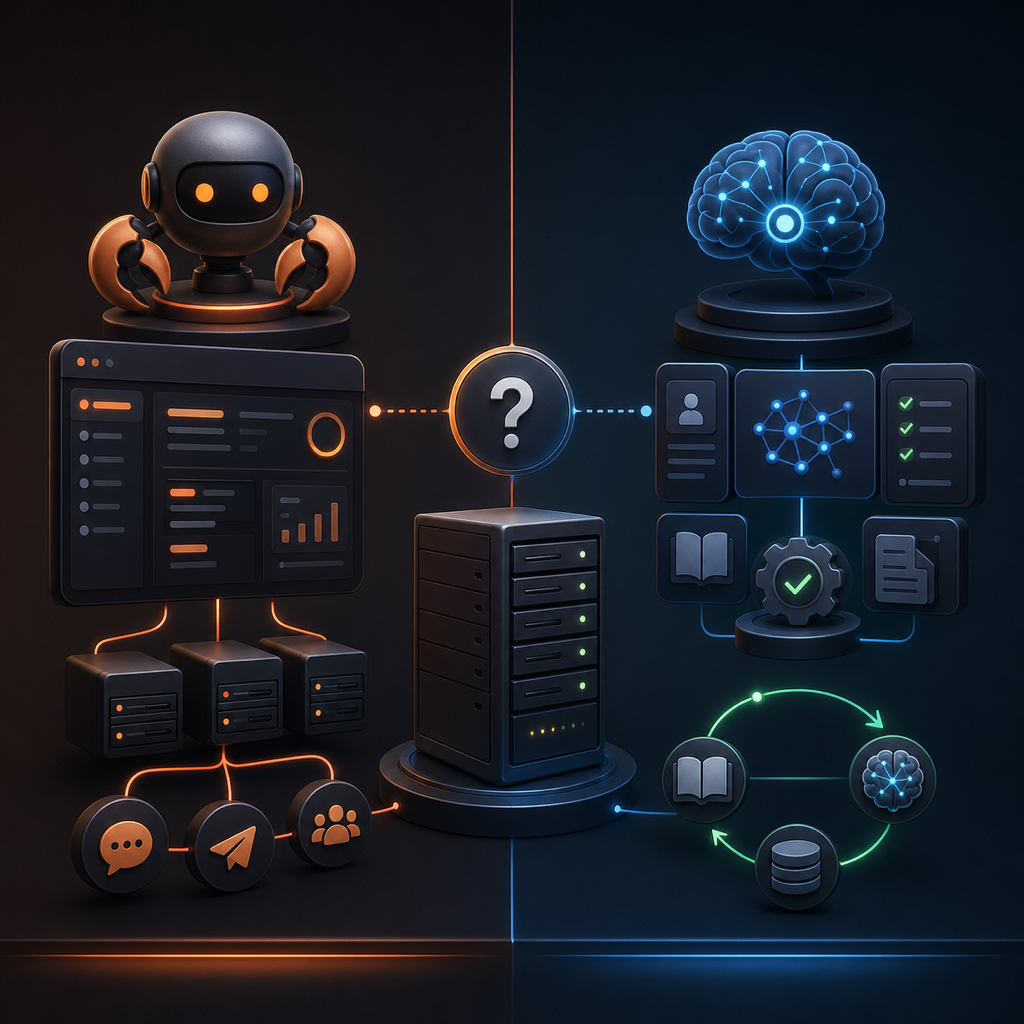
As of May 2026, OpenClaw documents WhatsApp as a production-ready web channel powered by WhatsApp Web through Baileys. This is different from the Telegram bot-token flow. Telegram uses a bot token. WhatsApp uses a linked session owned by the OpenClaw gateway, so setup has two parts: write the channel configuration, then pair the account with a QR code.
Telegram setup: paste bot token, restart gateway, message the bot
WhatsApp setup: allow phone numbers, link with QR, scan from Linked Devices
ClawKickstart path: Agent Setup -> Messaging channel -> WhatsApp -> Link WhatsApp
The most important product detail is that WhatsApp support is currently OpenClaw-only in ClawKickstart. Hermes Agent instances still use the Telegram setup path. If you select a Hermes instance, the WhatsApp option is intentionally unavailable because the worker-side QR linking command is specific to OpenClaw.
- Use an OpenClaw instance, not Hermes, for this first WhatsApp flow
- Have a model provider configured before expecting the agent to answer
- Use E.164 phone numbers such as +15551234567 or +46701234567
- Keep the ClawKickstart dashboard open while the QR linking operation is running
- Scan the QR code from WhatsApp on your phone: Settings, Linked Devices, Link a Device
OpenClaw recommends a separate WhatsApp number when possible. A dedicated number keeps your personal inbox cleaner, makes allowlists easier to reason about, and reduces confusion around self-chat behavior. A personal number can still work, but the operational model is different because your linked account is both the account owner and a possible chat participant.
In ClawKickstart, start from the dashboard and choose the running OpenClaw instance you want to configure. In Agent Setup, switch Messaging channel from Telegram to WhatsApp. Enter one or more allowed phone numbers in E.164 format. These are the numbers that should be allowed to message the agent directly once WhatsApp is linked.
Good allowed-number input:
+15551234567, +46701234567

Avoid local formats:
555-123-4567
070-123 45 67
When you save setup or reconfigure an existing OpenClaw instance, ClawKickstart writes the WhatsApp channel configuration into the OpenClaw config, enables the WhatsApp plugin, stores that WhatsApp is the active messaging channel, and restarts the gateway through the normal hatch/reconfigure operation path.
After configuration, use the Link WhatsApp action in the dashboard. This queues a WhatsApp linking operation and runs the OpenClaw login command on the VPS. The QR output is shown in Recent activity, so expand the latest WhatsApp link operation if you need to see the full command output.
# What ClawKickstart runs on the OpenClaw host
openclaw channels login --channel whatsapp

# OpenClaw also supports named accounts when used manually
openclaw channels login --channel whatsapp --account work
On your phone, open WhatsApp, go to Settings, then Linked Devices, then Link a Device. Scan the QR code shown in the operation log. Once WhatsApp accepts the link, the OpenClaw gateway owns that linked web session and can receive messages through the WhatsApp channel.
- Step 1: configure WhatsApp allowed numbers in Agent Setup
- Step 2: save setup or reconfigure the OpenClaw instance
- Step 3: click Link WhatsApp in the Diagnostics panel
- Step 4: open Recent activity and expand the WhatsApp link operation
- Step 5: scan the QR code from WhatsApp Linked Devices
- Step 6: send a simple test message from an allowed number
If the agent does not respond after the scan, run diagnostics. Diagnostics can confirm SSH reachability, gateway health, recent logs, Telegram configuration, and WhatsApp configuration/allowlist state. The next improvement planned for ClawKickstart is deeper connected-state diagnostics that distinguish configured, linked, disconnected, and needs-relink states after QR pairing.
There are a few useful troubleshooting rules. If OpenClaw reports that WhatsApp is not linked, run the linking action again and scan a fresh QR code. If it reports disconnected or reconnect loops, restart the gateway, inspect logs, and relink if needed. If messages are ignored, check that the sender is in the allowed number list and that the number is written in E.164 format.
- Not linked: click Link WhatsApp again and scan a new QR code
- Disconnected: restart the gateway, then relink if the session does not recover
- No response from your phone: verify the number is in the allowlist and includes the country code
- Wrong framework: WhatsApp setup is available for OpenClaw instances, not Hermes instances
- Gateway still silent: run diagnostics and review Recent activity before changing provider settings
The security model is worth keeping strict. WhatsApp is a personal and business communication channel, so do not configure open access casually. Start with an allowlist, use a dedicated number when possible, keep backups before major channel changes, and remember that a self-hosted agent can only be as safe as the boundaries you give it.
With this update, ClawKickstart now supports the practical WhatsApp path for OpenClaw: configure the channel, allow specific numbers, run QR linking from the dashboard, and keep the full operation visible in Recent activity. Telegram is still the simplest first channel, but WhatsApp is now a realistic option when you want your self-hosted agent in the app many people already use every day.